Tag Archives: photo 101

Light Painting Photography is Thinking Outside the Box, I Think?

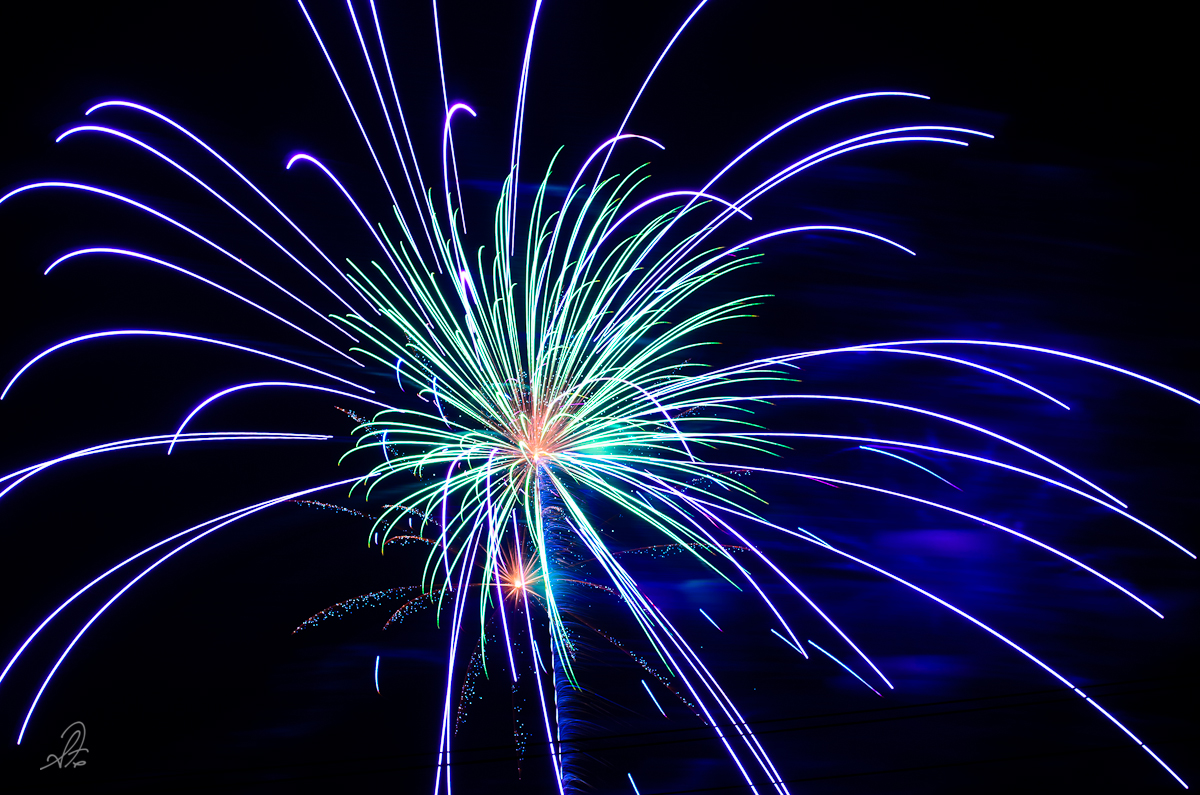
I love expanding my photographic abilities and learning new ways to be creative, it just isn’t as easy as it sounds some time.  Light painting photography seems to be all the rage now but it is something I tried when I shot my first photos of fireworks back in 1997.  It just looked so neat that I had to try it again and again before I finally figured out what was going on photographically.

What is really interesting is if you look at the definition of photography, it needs no other word (like “light”) in front of it to give it meaning.

pho·tog·ra·phy [fuh-tog-ruh-fee] –noun
the process or art of producing images of objects on sensitized surfaces by the chemical action of light or of other forms of radiant energy, as x-rays, gamma rays, or cosmic rays.

In other words, photography is “painting with light”.  Without light in pure darkness photography actually isn’t possible, but add any light to anything, and you can record what that light does on a specific medium or surface.

Light Painting Photography

Light Painting Photography

Light Painting Photography

Light paint photography (more accurately called low light photography), or just “light painting” to use the trendy phase at the moment, uses just about the same techniques as lightning photography, or fireworks photography (see a few examples at How to Successfully Photograph Lightning // Equipment and Techniques, Auburn 4th of July Fireworks Celebration // Photos, or Do it Yourself Low Light Fireworks Photography).  Coming up I might write a how-to do light painting photography just for the few differences it has over the above posts, so stay tuned.

A recent photo shoot with b/ turned out to produce a whole lot of duds for the intended purpose, but it was loads of fun trying.  Below are two of my favorites from that particular night.  I have several other “favorites” but will save them for later.  This is really one of the easiest forms of photography, for me, since you can control most all the variables and bring the technique down to just holding a button down for the “painting”.

One thing I mentioned above is to try something new and get creative.  I don’t know about other “creative” types (and I don’t really consider myself all that creative) but I need to have the right atmosphere and surroundings to get my brain thinking outside the box.  This was something we tried that didn’t work all that well for what we were doing, but taking the time to try keeps you thinking.

Catalyst08 - The Catalyst Conference in Atlanta

One other way to get creative, go to where the creative people go and learn from them.  In this case, this week, that will be the Catalyst Conference (see their really cool blog here) in Atlanta for me (and gotroot).  Catalyst is a leadership conference for what is the Church of tomorrow (see about), something I have been looking forward to for quite a while.

Tomorrow I will update this information in more detail and how to follow along.  I will be spending a good bit of my time photographing the event as well (sorry in advance to those going with me) and will post event photos here on Thrusday and Friday as soon as I can get them uploaded.  In the mean time, I leave you with some light painting.

A Photographers Guide on How To Compose Your Photographs

I am often asked about what equipment would be best to use, a digital SLR or a huge mega pixel point and shoot, and how can I make better photos with the equipment I have. So today, I am going to start a new series on this blog called photo 101 (see the first entry How to Successfully Photograph Lightning // Equipment and Techniques), intended to answer some of those questions.  You can see all the entries by looking at the tag on this blog called photo 101.

Many times I go back to the basics and re-read and re-learn what it is that makes a good photograph. I would say that almost everyone can improve on how they shoot. Even the professionals will grow as a photographer as they shoot and refine their subjects and techniques.

deborah on the sailboat

I am going to start off with a quick 14 point guide that helped me when I first started shooting. If you are interested in more you can visit the two categories called pic tips, and photo 101. I had a great photographer-mentor at UAB and these are some of the basics he passed along to me.

Composition can give a photo character or power, it can change the mood the image displays, or even the intent of the image. The image of my wife above was taken very quickly as we were leaving the marina after a nice weekend. It works well because the composition is not “bulls-eye” in the frame. It visualizes her reluctance to leaving and perhaps a little disdain for the camera in her face.

A Guide to Composing Your Photographs

1. Ask a simple question - Why am l taking this shot. lf there is no clear and simple answer to this question, you are not prepared to take a good photograph. You must be able to explain what you are trying to accomplish in a sentence or less. Start with the basics: What made you stop and look?

2. What Is the subject? Every photo must have one and only one subject. Now is the time to clarify and amplify the subject of the picture. If you have multiple subjects in the frame, recompose. Many times the entire frame will be the subject, but split subjects in one frame don’t often work well.

3. Now place your subject In the frame. Avoid the “bull’s eye” syndrome; Don’t routinely place your subject dead center in the frame. Use the “points of power” described where the lines of a “tic-tac-toe” grid (also called the rule of thirds) imposed in the viewfinder intersect for subject placement. Generally, subjects should look into rather than out of the frame. And use the f/stop which will provide the desired degree of depth-of-field.

4. Get Close. Now get closer. Most shots’ great flaw is that the photographer was too far away from the subject. The only shot that can’t be improved by getting closer is the Grand Canyon. But please do let the subject “breathe.” If you don’t have a long enough lens, try to move close to your subject.

5. Simplify. Remember that you must have a subject, but only one subject. Look around the frame: any item that doesn’t help tell the story, hurts it. Edit ruthlessly. Look especially for unwanted and distracting elements such as “hot spots”, trash, body parts, or bright lines diverting attention away from the subject. Pay particular attention to edges and comers of the frame.

6. Determine your point of view. Should this be a vertical or a horizontal composition? What’s the best perspective? How can you deliver this shot in a manner that makes it fresh, different from the obvious, different from your typical approach? Look around, find those places and angles that were not the most obvious when you walked up to the scene.

7. Try and try again. Take more than one shot; get the safe shot first, then go for the gold. Take lots of pictures; that’s how we get better. And be adventurous: once you’ve taken the “safe”, “sure” shot, experiment. Take chances. This too is how we improve.

With digital DLR cameras that are most commonly used now, we have a luxury that film shooters did not have. We don’t have to pay to process film. If you think a $50 CF card is expensive, try developing 50 rolls of film. Load up on high volume CF or SD cards and shoot away. The idea is not to shoot as many as possible in hopes of getting one good image, but you can shoot without worry and cost of film.

8. Which focal length is right? Don’t fall in love with your equipment; that favorite lens of yours is exactly right for some things, but not all things. If you don’t try new things, you become brittle… predictable. Try different lenses/focal lengths to achieve different results.

An example of this is the airport in 50mm shoot I did recently (see Atlanta Airport and a 50mm Lens // Part 1 and also part 2 and part 3). I tried using something other than the normal lens I would use, and I achieved some results I wouldn’t have otherwise.

An old film trick, use an empty slide mount as a composing tool. The distance of the slide mount from your eye is the focal length: rotate to simulate vertical or horizontal formats.

9. Watch your horizons. If there is a visible horizon in your shot, it must be level. lf there is no horizon, you may turn the camera in almost any direction. But remember to give the viewer a cue as to which way is up…

Don’t just think I can fix the horizon in Photoshop later. If the horizon is off on the original image by 5%, when you go to “correct” the slanted horizon in Photoshop, you are going to essentially crop 5% off of your entire image all the way around. That may be ok, but if you composed the image full frame, you may be loosing something you don’t intent to crop out.

10. Evaluate the lighting. What is the direction of the light? (Backlight, sidelight, frontlight) What is the intensity of the light? (Full sun, haze, open shade, deep shade) What is the color/temperature of the light (Pink, amber, blue, grey) Now, how can you incorporate the lighting factors into your shot to make it better?

11. Deal with your foregrounds and backgrounds. And deal with them constructively. In a landscape, the foreground serves to anchor the viewer; other times, such as wildlife photography, a blurred foreground provides a sense of closeness to the subject. Same with sports photography, much like wildlife, you want your subject to pop off the screen, not blend into the background.

And again, a soft wash of unfocused color in the foreground can be used to fill an otherwise too-empty frame with useful soft color. And how much background sharpness is called for. The background should compliment - never compete - with the subject.

Use complimentary and supplementary colors in the background and foreground to highlight your subject. This is not always possible in sports photography, but look for it, it may be there and you just didn’t look for it. The image of my friend Heath below is a good example. The orange of his shirt and the green of the grass are very complimentary and make for a great background/foreground combination.

Portrait of Heath

12. Filters? Flash? Special effects? Yes, but if and only if you can explain in one sentence why it is needed and what it will do to make the shot better. This isn’t as needed with digital as it was with film, but it should still be part of the consideration.

13. What have you missed? How about your exposure? Are you sure about it? Have you considered all the rules of photography, such as the rule of thirds? Looking through the viewfinder, do you still love what you see? Would you change anything? How about your technique? Is the camera steady on a tripod, with the head locked?

14. Now it’s time to make magic. Though it sounds painstaking, this checklist becomes second nature; the point of the exercise is to make taking pictures more successful and therefore more fun.

Update Old Photos with New Nikon Picture Controls // Part 2

This is an extension (or part 2) of my previous post, Nikon Picture Control Modes, NX2 // Part 1, and shows an example of why RAW NEF files are so good to have. I have been adjusting my post processing methods to include the Nikon ViewNX and Capture NX2 and have found some amazing uses for both.

Update Your Old RAW Files with New Nikon Picture Controls

One good thing about shooting in RAW file formats (NEF for Nikon) is that you can adjust or edit files in the future for advances that haven’t even come out yet. As I was working through all the different Nikon Picture Control modes I realized that I could take an old photo, shot in RAW NEF, and apply the new Picture Controls that are now commonly used in the Nikon D3 and D300.

Many people don’t like shooing in a RAW format. It takes up to much space, to long to process, the images don’t look good right out of the camera, and so on, but they are the only file format type that you can use for post editing effectively. When you take a photo in a jpg format, the edit process is complete when you pull the trigger.

Examples in D2X-RAW, Standard, and Vivid

These three images below were taken in 2005, well before the Nikon D3 or D300 and before the Nikon Picture Controls that are used today were ever released. The first image is the raw file as shot in the camera, at the time using the D2XModeII picture control. The second one is with today’s Standard picture control applied, and the third one is with the Vivid picture control applied.

RAW Image with D2XModeII Used as Shot

As shot in my Nikon D2X, RAW NEF, Mode-II

Updated to the Standard Picture Control of the D300

Processed using the Nikon Picture Control Standard Mode

Processed using the Nikon Vivid Mode

Processed using the Nikon Vivid mode from D3/D300

The Vivid Picture Control here probably needs to be toned down just a little in the saturation but I like heavy saturation. The whole reason I used Adobe software to process my images years ago is because the first RAW image above is what came out of my camera.

The software roles have shifted a little now where Nikon’s Capture NX2 and ViewNX (although still not friendly to use or graphically pleasing, to me) has made it easy to get the results you were looking for when you shot the image. Adobe still will not process the Nikon Picture Controls properly and just strips the data away, making for a bland image without a lot of work.

That is why many people dislike RAW (NEF) files, but in this case it shows me exactly why I shot RAW NEF files in the first place. Now, years later I can still open and adjust exposure, saturation, and of course the new Picture Controls.

Nikon Picture Control Modes and Capture NX2 // Part 1

As indicated in the title, if you are not a photo geek looking for some geeky information them perhaps you might want to just over to my gallery and just look at some photos and come back next time, but, if you are a DSLR user, this is for you.  [I also have a post (part 2) that includes some photo examples called Update Old Photos with New Picture Controls if you would like to see the Nikon picture controls in action.]

Brief Background

A brief background to my work flow. I have been shooting digital since I bought my first Nikon D100 in 2002. Prior to that I was shooting all slide film like Velvia and Kodak 100s.

I had used a similar work flow process when I was shooting with my Nikon D2X up until 2006 when I switched to some very casual shooting back to my Nikon D100 and did not mess with much of a workflow process. Now that I am once again shooting with the Nikon D300 (and soon to be D700, possibly the D3X), I have gone back to learning the process I did back then.

Digital Postprocessing Workflow

In the world of digital photography, the dark room has been replaced by the editing process after you finish shooting. Same as with film, except there seem to be more and more steps involved in the process now to get the image you want, the one you took in the camera.

Some people look at the images directly from a digital camera and think they look terrible when shot in RAW. That is because most of the time, they do, unless you have a specific workflow process for the image. If you are using the standard jpg file, then that is different. The jpg’s are pretty much done when you press the trigger. You can’t effectively adjust for anything in post processing with a jpg file.

Since I shoot Nikon, this is based on a Nikon workflow, but Canon shooters do the same sort of thing. I usually take my RAW files, same them to my HDD, then convert them to a DNG (Adobe’s digital negative format), then view them in Adobe Bridge, opening the file in ACR (Adobe Camera Raw), make some minor adjustments, then the file opens in CS3 (Adobe Photoshop 3) to do my final touches and output a PSD file copy and a jpg for web use.

This was all fine but not giving me the results I wanted until I remembered how Adobe handles Nikon’s Picture Control Modes… they don’t.

Nikon Picture Control Modes Default to Download

Nikon Picture Controls are basically preset points for saturation and contrast. A very good explanation can be found on Ken Rockwell’s website (review here). You can also read where some believe these picture controls will fade away, read The Slow Passing Away of Nikon Color Modes, although I am not so sure as popular as they seem to be, and another good place is the Nikonians Forum or dPreview Forum (see this post).

These picture modes for the Nikon D300 are called Standard, Neutral, and Vivid. You can manually adjust each one and they give you the same sort of effect that different films would. If you wanted to shoot something in nature with saturated colors like reds and greens, you would use the Fuji Velvia 50 film. Today, you would choose Vivid picture control mode on the menu.

If you were use to the picture controls from the Nikon D2X, you can still download these and use them on your D300 or the newest D700. These are called D2XMode I, II, and IIIa from the D2X or today on the screen they are D2XI, D2XII, or D2XIII. These are the same picture controls used on the D2X, and are totally different from the D300 options.

Nikon also just released two new picture controls called Landscape and Portrait. All of these can be downloaded from Nikon’s website (download Nikon Picture Controls here). I am going to post some examples in the upcoming parts but you can see some good ones from the Ken Rockwell website.

Photoshop CS3 and Nikon Capture NX2

So, I setup, take the shots, then proceed into my post processing workflow. One thing I had totally forgotten is that Adobe will not read Nikon Picture Control modes. There are many aspects that determine how a final image will look besides how you took the image. Color space, picture controls, and of course the software you use to edit the images.

Since I just purchased the $200 upgrade to CS3 I wasn’t real happy to find out (or remember) that it doesn’t matter what picture control mode I use, it isn’t going to even show in any Adobe workflow process. If you want to ditch the color modes, then process away. Bridge will start out by removing your color mode that will show in the preview, leaving an image (to me) less than what was shot.

The solution is to use a large combination of software and workflow processes to get what you want, unfortunately. As I said before, if you are just using the jpg files, no need to bother. If you aren’t using a picture control mode, no need to bother.

But, if you shoot in RAW format, using a specific saturation you want, you will need to use Nikon’s Capture NX2 software to utilize the color modes. Of course that’s another $200 to Nikon I didn’t want to spend, but who’s counting at this point.

Workflow Process AND Using Nikon Picture Control Modes

If you followed me this far, you might wonder how anyone ever gets a final image they want, or why anyone would bother with all this, don’t we just pull the trigger and email the photo to someone? Well, all the more serious photographers I know are pretty particular about their images, so they (we, I, us) tend to go to these lengths in the post editing phase, although, many don’t care for the editing process.

I never learned how to use a dark room and develop film. I don’t know the first thing about it. But this is the dark room of our current time, and to be a well rounded photographer it is important to know how our dark room functions and how to properly use the tools we have.

It looks like if I want to use the picture controls I have a few options. I can:

  • Download my NEF files, convert all to DNG for archiving
  • Use Nikon ViewNX to view my NEF RAW files and output to jpg or tiff immediately
  • Use Nikon ViewNX for initial edit, then move to Nikon Capture NX2 to adjustments
  • Output the needed file from NX2 in jpg (using color space ProPhoto RGB)
  • Open in Bridge, convert the jpg to a non 16-bit sRGB file for uploading
  • Save my edited NEF file to preserve the original

or if I want to use Photoshop CS3 that I just paid for I can:

  • Download my NEF files, convert all to DNG for archiving
  • Use Nikon ViewNX or CaptureNX2 to convert all NEF files to TIFF for opening in CS3
  • I can now open all files with the Picture Control Modes saved in the tiff… but… I loose all ability to adjust anything in ACR as ACR will not open a tiff file.

You can download Nikon Capture NX2 for free for a 60 day trial. Might not be long enough to learn the software, it is not the easiest piece of software I have ever used, but the more I use it the easier it gets. It does have some good innovations as well, but I am so use to, and like, CS3, Bridge, and ACR that using a combination of all these will take some adjustments.

If you are just interested in reading more about the digital workflow process, John Shaw has a great digital workflow process outline on his website.

What is your work flow process? Do you use the Nikon Picture Controls or does it even matter? Stay tuned for part 2.

Update:

Part 2 is located in post Update Old Photos with New Picture Controls, I have also started to review a few other alternatives to Nikon CaptureNX2 like Adobe’s Lightroom and Apple’s Aperture. After using Adobe Lightroom for a while I have to say it isn’t really my favorite. I can use Adobe bridge and CS3 with better results and it seems to be a little complicated to use. I am waiting to buy my MacBook Pro in a few weeks and I will get Apple’s Aperture and put it through its paces. I have read great things about Aperture, can’t wait to use it.

How to Successfully Photograph Lightning // Equipment and Techniques

Well we finally got some lightning (and a little rain) over in this part of the state last night. Here is an image I took last night during the storm. One of my most favorite subjects in photography, lightning, always makes for a nice dramatic nature image. It is so hard to get it just right, and it is nature at its most glorious.

Light Across the Pasture

How to Successfully Photography Lightning

Safety - you don’t actually want to get struck. If you can be in a protected area, best to not be holding a tall metal tripod during a storm, you might as well go play golf at the same time.  I list this first because it is the most important thing to keep in mind.  When you feel the static charge in the air on your skin, time to head for cover, quickly.  Know which way the storm is moving so you can take action ahead of getting yourself in trouble.

If possible, try to photography lightning from inside a protected area like a house or a car.  This is almost always not possible, but when it is, it gives you a little extra edge to be able to stick around a little longer.  this image above was taken from inside my house on the second floor out of an opened window.  I was protected from the rain and could quickly take cover in the room if the lightning got to close.

Equipment Needed for Lightning Photography

Camera - you need a camera that can do an open shutter exposure. This is usually called a “bulb” setting, where you can depress the shutter release and leave it open for an undetermined amount of time.  This usually means an SLR camera body, film or digital, that you can control the manual setting and change the shutter to “b”.  This is needed just because you rarely are going to know the exact time lightning will strike, but you can probably catch it within a few seconds.  The flash of lightning only lasts a split second, so having an open shutter is pretty much a must unless you have a lightning trip device.

I have used many many camera bodies over the years.  Right now, I am using a Nikon D300 and a Nikon D700 digital SLR, but you can get a nice DSLR now like the Nikon D40, D60, or D80 that won’t cost you an arm and a leg (sorry I know there are also many good Canon bodies as well, I am just not familiar with them).  The point is, any digital SLR will do, even an older film SLR will work great.  I took many lightning images with my old Nikon N70 and N90s film bodies.  The image above was shot with a Nikon D100 which you can now buy used for around $200-$250.

Lenses - You can choose just about any lens and get some results.  I prefer to use something around a 50-70mm lens, wide enough to get a big enough area to actually have a chance to capture the lightning and tight enough to see the lightning when it occurs.  Use to wide an angle the lightning will look pretty small in the frame, use to close a zoom and you reduce your chances of capturing the lightning when it occurs.  If this is a particularly active electric storm, a zoom might work if you know right where to place the camera.  The lens I used for the image above was a consumer lens, a 24-120mm zoom (non VR) taken at the 24mm focal length.

Tripod - A sturdy tripod is pretty much a must.  Not a plastic one or flimsy video camera one, but a heavy metal tripod that you hate lugging around with you.  If you don’t have a sturdy tripod, you can use something like the hood of a car, a window frame or ledge, a rock or stump, anything you can set your camera on to take away the effects of hand holding a long exposure.  At one point I had a very nice carbon fiber tripod (which cost me about $1,500 USD) but it was sold when I didn’t get much use out of it, and I returned to using my old heavy metal Bogen (now also called Manfrotto) tripod (retails for about $200-$300) which works great.

A Remote Shutter Release - this is something that is also pretty much a needed item.  These are not expensive items if you already have a digital SLR camera body.  They attach to the camera on a port usually in the front of a modern DSLR.  I use a pretty fancy one called the Nikon MC-20 which costs about $60 now (I paid about $130 for mine years ago), but you don’t need one like that, any $5-$10 remote trigger device will work.

Know a Little About Weather, Storms, and Which Way They are Moving

You probably want to try to get the lightning that will show up prior to the rain. This is not always possible, but it is hard to photograph during the rain storm that follows a frontal line.  There are many times when you can see the lightning well before the storm arrives.  Once you start to see it, and you can determine which direction the storm is moving, try to position yourself (it that is possible at all) where you are ahead of the storm front and can pack everything away once it arrives.

You don’t have to be a weather expert, just try to look at the clouds, see which way they are moving and try to adjust your location and distance accordingly.

The Color and Brightness of Lightning - Lightning actually comes in a variety of colors.  Each photograph I have taken always comes out with a different color, because the intensity and actually the kelvin temperature of the lightning varies greatly from bolt to bolt when you are shooting.  The cloud to ground lightning and cloud to cloud lightning is most likely going to be your subject, so once you have taken the photo, review the color in your edit process and make adjustments to the proper color you want to achieve accordingly.

Techniques for Shooting Lightning: Exposure, Shutter, ISO, Aperture and White Balance

Technique - the most common way to photograph lightning is to use a shutter release. Open the shutter for a few seconds and wait until you see some light. Then close the shutter. Do this over and over and over and hope that you actually get a bolt in the photo. You will want to use a wide lens to get as much coverage of the sky as possible. Usually once you see some light it will blow out the image if you leave the shutter open any longer, so just a few bolts at a time unless it is really dark. The object would be to try and get several bolts in one exposure. This is not as easy as it sounds, but makes for a great shot. If you try this, think safety first, nothing else.

Exposure - as indicated above, you want to use your shutter release to open the exposure in a few second intervals at a time.  This will be different with each situation because the proximity to the storm, intensity, pollution, ambient light in the area, all effect the exposure.  If you are shooting just as the sun goes down or there is still some light in the sky, a shorter shutter speed (or higher aperture combination) will be needed to reduce the background visibility.  I like to try for anywhere around 3-30 seconds on my exposures.  30 seconds is usually a bit long especially if you are in a big city with a lot of ambient light, but test it out and see what works best.

Aperture - you should already know the correlation of aperture and exposure, so if you are going to want to use a long long shutter speed, use a large aperture like f/2.8-f/5.6 and if you want something around 3-7 seconds, I would choose to stop down a bit more to something like f/8-f/11.  It also depends on how far away the lightning is and how much light you need in the exposure.  Remember, lightning is VERY bright, so you will burn out the image quickly with just the lightning bolt if you aren’t careful.

ISO Speed - I am writing this assuming we are using a digital SLR camera body.  If you are using film, usually an ISO-100 speed film will work.  I have used Fuji Velvia 50 with lightning photography before and did get some good results as well.  For digital SLR cameras, we manually set the ISO speed which is the third factor in determining exposure.  I like to use the ISO-200 setting to get the highest resolution I can get.  But you can use anything from ISO-100 to ISO-800 or more depending on the proximity of the lightning and your exposure settings.  The closer the lightning, the lower the ISO speed I would use.

White Balance - white balance on cameras today is something a little more tricky.  I almost always use the auto white balance setting just because no other pre-set or kelvin setting seems to work because each lightning bolt or strike is different.  I have used the cloudy or shade white balance and had good results with it, but I never know what I am going to get, and the auto setting isn’t any better than anything else.  It is getting better with the newer digital SLR camera bodies, but for lightning is still isn’t quite there yet.  If you are shooting your images in RAW file formats you can always look at each white balance setting in post process editing and see which one you like best.  If you don’t do any post process editing, that is fine to, the results you can get from the straight jpg file will usually look great too.

Image Data Specifics

I decided to just go ahead and copy the exact camera settings from the image above.  I love seeing data from different shots, so listed below is a copy of the exact settings I used to take the image above.  Keep in mind, all situations are going to be different and no two lightning shots are going to work with the exact settings below.  You will have to adjust everything for your situation, but you can see what I used in this image.

File Info 1
File:    alabama-lightning-photography.jpg
Date Created:    9/8/2008 6:47:14 AM
Date Modified:    9/8/2008 6:47:14 AM
File Size:    118 KB
Image Size:    900 x 593
File Info 2
Date Shot:    5/8/2008 21:41:10.9
Image Quality:
Camera Info
Device:    Nikon D100
Focal Length:    24mm
Focus Mode:
VR: n/a
Exposure
Aperture:    F/5.6
Shutter Speed:    3.8s
Exposure Mode:    Manual
Exposure Comp.:    -0.3EV
Metering:    Matrix
ISO Sensitivity: 200
Flash
Flash Sync Mode:
Image Settings
White Balance: auto
Long Exposure NR:
GPS
Latitude:
Longitude:
Altitude:
Heading:
UTC:

This image was one that turned out ok. I took probably 100 within about 10 minutes that did not. It is not an exact science by any means.

Have Fun and Don’t Get Frustrated

This is almost impossible with photography sometimes.  Don’t get frustrated with your results.  Afterall, photography is supposed to be fun (I think) so try to have a good time, stay safe, and shoot a lot of frames.  If you are shooting with a digital SLR you have the luxry of just shooting away and deleting files later.  I may shoot 200-300 frames before actually capturing one image.  I may shoot for an hour and not get anything.  This isn’t a flower that you have in front of you, it is something very unpredictable, so just have some patience and try again and again to get something you like.  The first lightning images I took were scarce tiny little blips of light in the sky, to which my wife said, “what is that?”.  So just keep trying and you will get some good results.

How to Improve the Image Quality of your eCommerce Photographs // The Basics

Product Image QualityHow much importance do you put on using high quality images for your products and services? You have heard the saying, image sells? Well, you can increase your sales by using professional looking images. Over several articles, I am going to examine some ways we can improve the images we use to promote our products and services.

This particular article is geared more to the ecommerce side of things where you would need to use an image for product based sales.

Producing high quality images does not have to be expensive, and it can be done just about anywhere you run your business, but the finished product also reflects on your business, blog, or website, so you want to put forth the best images you can produce.

Importance of High Quality Images

I have been a photographer for about 15 years now, so one thing I always pay attention to on my own ecommerce sites is the quality of the images I use. But, you don’t have to be a great photographer to get good results. Below I will look at some simple steps you can take to improve the quality of the images you are using on your website, blog, or ecommerce site.

There is a great correlation to the quality of images you use and the ASP’s (average sales price) you achieve, or even the traffic you generate. It is easy to gage. Just put up some run of the mill (or bad) images and see what stats you get on sales, then put up a great image of the same product and see what changes.

Most people don’t want to take this approach of course, they already use the best images they have, so we should really just be trying to improve on those images, but good images draw a person into the site, they hold attention, and can also repel.

Some Photography Basics

Photography is a method of allowing light to draw on a medium to reproduce something you see. There are of course a few basic things you will need. You need a camera. A digital cameras are not too expensive now, but if you can, I would recommend getting an inexpensive SLR (single lens reflex) camera over a point and shoot type camera. The image quality will be better and you will have more options if you want to go beyond the basics.

Nikon has several digital SLR cameras for under $500, the D40 is one, and B&H Photo is a good reputable online camera dealer with good prices. I have ordered from them for years and their prices are very competitive. Another good basic piece of equipment to have is a tripod, especially for product images. The slightest movement will create a far less sharp image and if you start with a poor original you end up with a poor finished product as well. If you buy only one other item outside the camera, make sure it is a tripod.

Some Quick Tip Basics

I will expand on each of these ideas in later posts, but some things that you should remember when trying to improve on the image quality for your products.

Light on the Subject Please

You can’t have a good image without good light. Pay close attention to the light and try to use natural light, either by taking the image near a window that has some reflected light (not direct sunlight), or use a flash. The light is what makes an image, so using a light tent (more about this later) will produce a professional looking image with no background to worry about.

You can make a simple light tent out of a one gallon milk jug that works great. Cut out the bottom to place over the image and the top to place the camera lens. Then use some shop lights or other lighting sources to cast an even soft light all around the product.

Backgrounds Can Be Distracting

You don’t want a busy background on a product image. You want a clean, preferably solid color background with some good contrasting color. Try to illuminate the background as much as possible. Anything that shows other than a solid color is going to take away from the subject. You can use a simple cardboard sheet like you used in grammar school. They come in several colors and you can get them almost anywhere.

Use a clean background for image quality

Use a color for the background that is a contrasting color to the subject matter. For the image above, I used a white liner that came with the Swarovski cyrstals I was photographing. It made a nice background, and also had the company name imprinted on the paper, which was faintly visible in the shots I used for the website.

If you are taking a photo of a book with a dark blue cover, don’t use a black background, use a white background. You want your subject to jump off the screen when someone looks at it.

Proximity So You Can See

Get close. Then get closer. You want to be as close to the subject matter as possible. This is for some obvious reasons but when you are editing an image on the computer, the closer you get, the higher the image quality is going to be if you have to crop the image at all. The smaller the subject matter is on the film plane, the smaller it will be and get as you crop the image down in size.

If your camera takes a 6 mp image size, you will have an image area of something like 3000 px wide by 2000 px tall. If you take the subject in full then you have a subject that is about 3000px wide. If you take the image from a distance, it will be smaller on the file, more like 500px to 600px. When you are editing the image, you want to work with the biggest image possible.

Close up macro

In the image above, I was trying to show how to measure the size of a crystal using a caliper. It was important to get in real close to the subject matter to be able to show a clear and clean image of a subject that was only 10mm’s tall. I used a specialty lens called a macro lens to do this close up.

Each camera lens will have a minimum focus distance. This is as close as you can get to a subject matter and still have it render in full focus, find this and get as close as you can. Get in close and your image quality will be greatly improved.

Editing is an Important Step

I am only going to touch on editing briefly in this post, but this is an important step in producing a high quality image. You probably can not just take the image from your camera to the website and have it look the best that it can look. You will need to adjust and fine tune the image in some image editing software. If you can learn how to use Photoshop I would highly recommend using this program to edit your images. It is what the pros use, for good reason.

Don’t go overboard on the editing. You want to crop out the edges that are just blank space. Make sure the subject fills the entire image, adjust the levels (more about this later) and then save the file. You will want to save your final image in a form easy to use on the Internet and stick with it. A .jpg, .gif, or .png are all good file formats to use. A .png will produce a small file size with good image quality. If possible, start with a RAW image on your camera, then save it to a compressed format.

Coming Up

Coming up I will go a little more in depth about these topics discussed here and more specific how to details. If you have specific questions please post them below and I will be more than happy to answer them.

I did find some other good blog posts on the subject of image quality, like Taking Better Pictures by Lumberjocks, Ten Tasty Tips for Photographing Your Food, 5 Tips for Taking Better Photos of Landmarks and eBay’s Photo tutorial, but there wasn’t a whole lot of information out there about the subject as it pertains to blogs and ecommerce, so I will try to continue this series for those who are interested.